
Digital accessibility
Keyboard Accessibility Testing: A 10-Minute Self-Audit
Discover how simple keyboard accessibility testing can be. Uncover hidden navigation barriers on your website in just ten minutes without installing extra tools
Put away your mouse. Turn off your trackpad. You do not need expensive software or complex automated tools to spot serious accessibility problems on your website.
You only need a keyboard and ten minutes. Manual keyboard accessibility testing reveals how disabled visitors, power users, and screen reader users experience your pages.
Why Keyboard Navigation Matters
Many website owners assume that accessibility requires installing specialized scanning tools. While automated scanners have their place, they miss over half of all accessibility issues. A scanner cannot tell you if an interactive menu is pleasant to navigate or if a form control is usable without a mouse. Manual testing fills that gap immediately.
Keyboard navigation is the underlying engine for most assistive technologies. Screen readers, switch access devices, eye-tracking hardware, and sip-and-puff switches all rely on the browser keyboard interface. If your site works cleanly with a physical keyboard, it becomes far more accessible to people using specialized hardware devices. If keyboard support breaks, everything else breaks with it.
Beyond compliance and disability access, keyboard support benefits power users who navigate websites using shortcuts. It also helps anyone with a temporary injury, like a sprained wrist or a broken trackpad. Building a site that responds smoothly to keyboard input creates a better overall experience for every visitor.
Essential Keys for Keyboard Accessibility Testing
Before running your audit, you only need to learn a handful of standard keyboard controls. These keys function identically across most modern desktop web browsers.
- Tab key: Moves your cursor forward to the next interactive element on the page, such as a link, button, or form field.
- Shift + Tab: Moves your cursor backward to the previous interactive element.
- Enter key: Activates links and buttons, submitting forms or opening actions.
- Spacebar: Toggles checkboxes, operates custom buttons, and scrolls down pages when focus is not inside an input.
- Arrow keys: Navigates within complex components like dropdown menus, radio button groups, select menus, and tab lists.
- Escape key: Closes popups, modal windows, mobile navigation drawers, and submenus.
On macOS, you may need to enable keyboard navigation in your browser settings first. In Safari, go to Settings, select Advanced, and check the option to press Tab to highlight each item on a web page. In macOS System Settings under Keyboard, ensure full keyboard access is turned on. Once configured, you are ready to test.
Running Your Ten-Minute Keyboard Audit
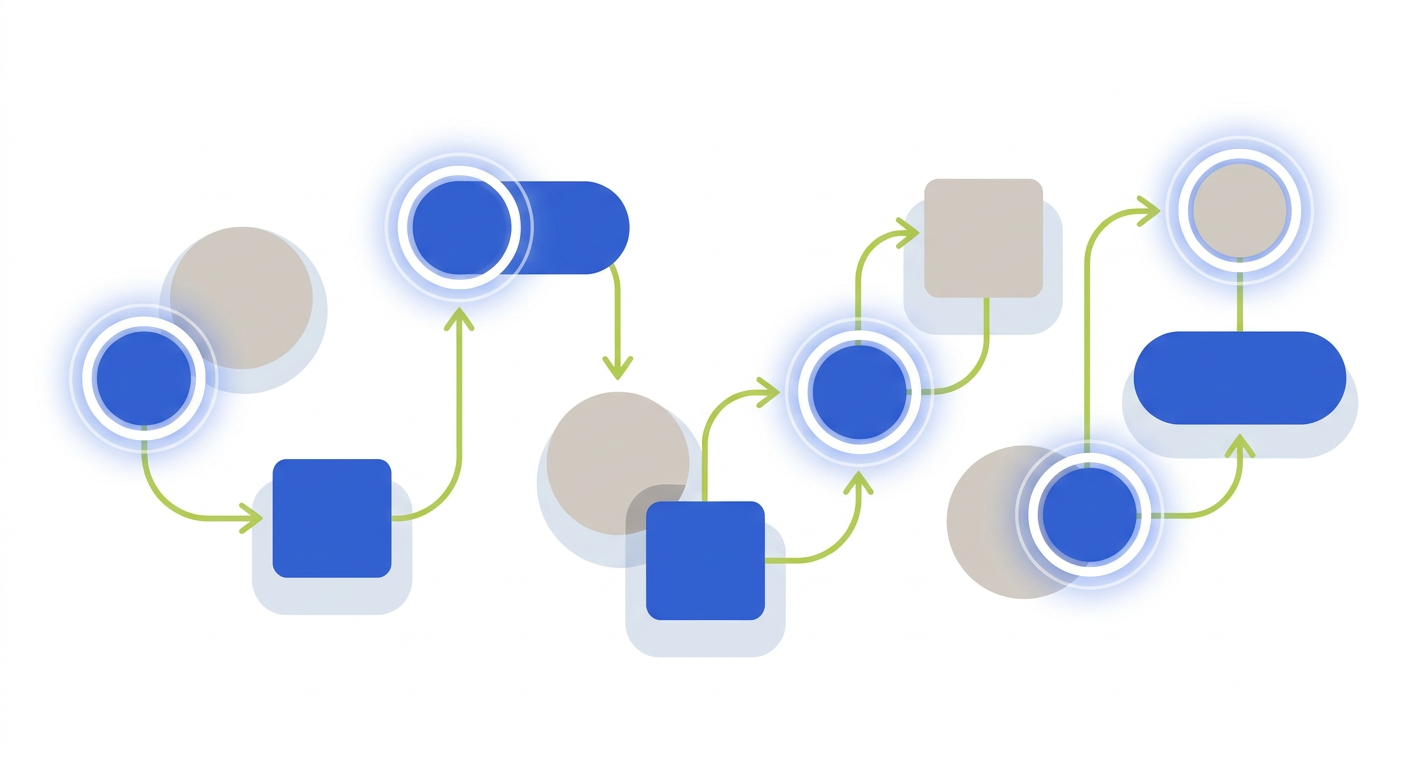
Open your website in a new browser window. Click on the browser address bar, then take your hands off your mouse or trackpad. Use only your keyboard for the rest of this exercise. Follow these four steps across your primary website pages, including your homepage, contact form, and key service pages.
Step one is checking for a skip navigation link. Press the Tab key once after placing focus in the address bar. A visible button should appear at the top of the viewport reading Skip to main content or similar. Pressing Enter while focused on this link should jump your cursor past repetitive navigation bars directly into the main article area. Skipping long menus saves keyboard users dozens of keystrokes per page load.
Step two is verifying visual focus indicators. As you continue pressing Tab, every interactive element must display a clear visual highlight. This indicator tells the user where they are on the page. If the highlight disappears, your user becomes instantly lost. Look for strong visual outlines that contrast sharply against the background color.
Step three is testing logical tab order. The focus highlight should move naturally from left to right and top to bottom, following the visual reading order of the layout. If focus jumps randomly from the header down to the footer, then back to the middle sidebar, the visual hierarchy is broken in the code.
Step four is testing interactivity and form elements. Press Tab until you reach main navigation dropdowns, search bars, contact form fields, and call to action buttons. Press Enter or Spacebar to activate every control. Fill out a form completely without touching your mouse, using Tab to move between fields and Spacebar to check boxes.
Common Barriers Uncovered by Keyboard Testing
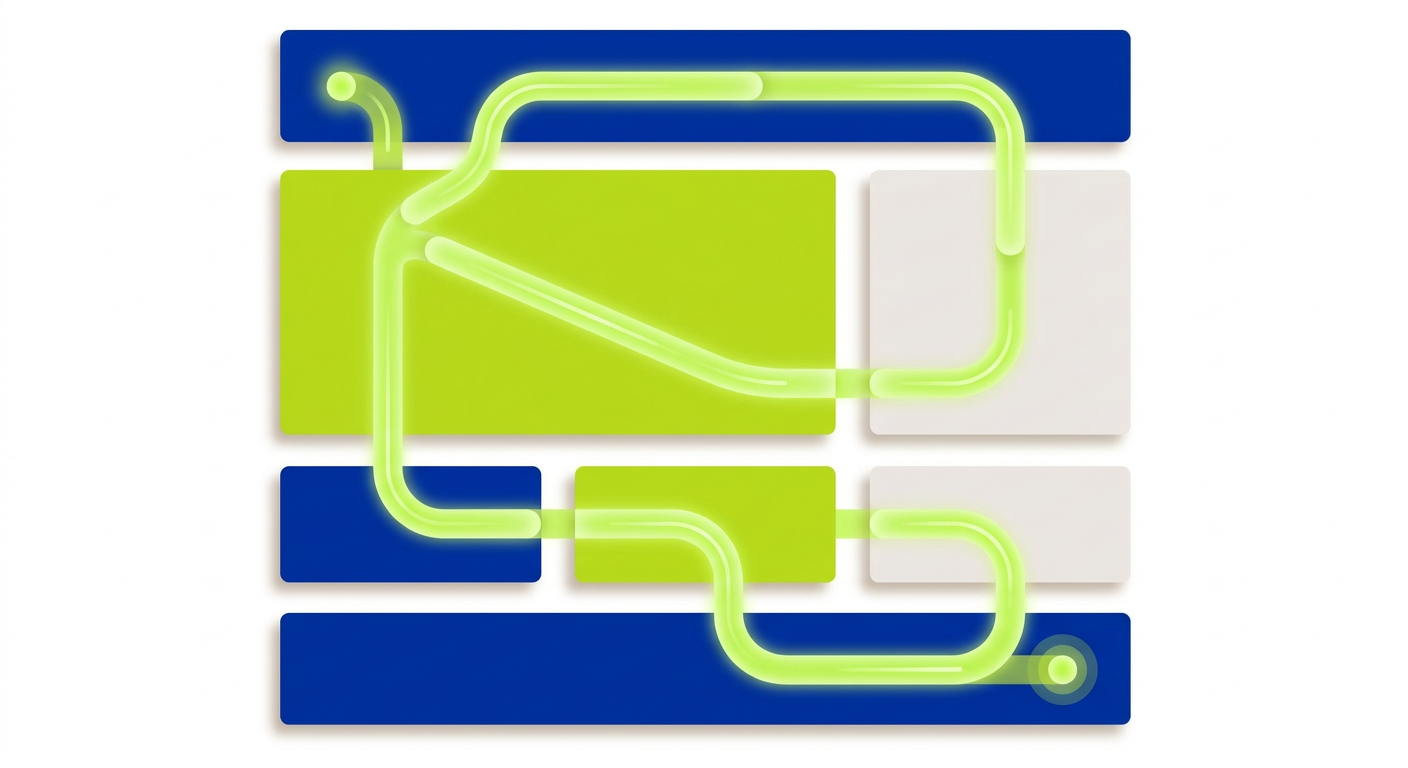
While performing keyboard accessibility testing, you will likely encounter a few common code defects. Recognizing these issues helps you explain them clearly to your web designer or developer.
The most frequent error is suppressed focus outlines. Web designers sometimes disable default browser outlines in CSS using rules like outline: none without providing a custom visual replacement. This renders the focus highlight completely invisible. Removing focus indicators destroys usability for keyboard visitors.
Another frequent barrier is the keyboard trap. A keyboard trap happens when focus moves into a pop-up window, modal dialog, or embedded video player, but pressing Tab or Escape cannot move focus back out to the main page. The visitor gets trapped in a loop and cannot complete their task or leave the section without refreshing the page.
Custom interactive elements built with improper HTML tags also fail keyboard tests. Developers sometimes create buttons using generic div or span elements with custom click scripts. Browsers do not recognize generic elements as interactive by default. Consequently, the Tab key skips past them completely, making them unreachable unless explicit keyboard handlers and roles are declared.
How to Fix Keyboard Navigation Defects
Fixing keyboard accessibility issues begins with returning to semantic HTML. HTML elements like anchor tags, buttons, inputs, and textareas have built-in keyboard behavior and screen reader support. Using true native elements solves the vast majority of keyboard accessibility bugs automatically without writing extra code.
For visual styling, web developers should use modern CSS pseudo-classes like focus-visible. This rule allows designers to display clean, prominent focus rings specifically when a user navigates with a keyboard, while hiding the ring during standard mouse clicks if preferred. Custom focus styles must maintain at least 3:1 contrast against surrounding colors to comply with WCAG 2.2 criteria.
For complex UI components such as pop-up dialogs or slide-out navigation drawers, JavaScript focus management is required. When a modal window opens, keyboard focus must move automatically into the modal. When the user closes the modal by pressing Escape or clicking a close button, focus should return directly to the trigger button that opened it.
Making Keyboard Testing Part of Your Regular Workflow
Automated testing tools are helpful for catching simple color contrast failures or missing image text, but they cannot evaluate context or interactive flow. Running a manual keyboard audit takes ten minutes and gives you immediate feedback on the real user experience of your website. Perform this audit whenever you launch new pages, add form plugins, or update your site design.
Testing your site with a keyboard is a fast way to find real barriers. If your audit turns up focus issues, keyboard traps, or broken form navigation that you are not sure how to fix, Twist Web Studio can help you build a clear path to WCAG 2.2 AA compliance.